First-Time Setup Guide for MEmu Play
 |
|
If you’re launching MEmu for the first time, a quick setup will help ensure the best performance and compatibility for Android apps and games on your PC. Follow these steps to get started.
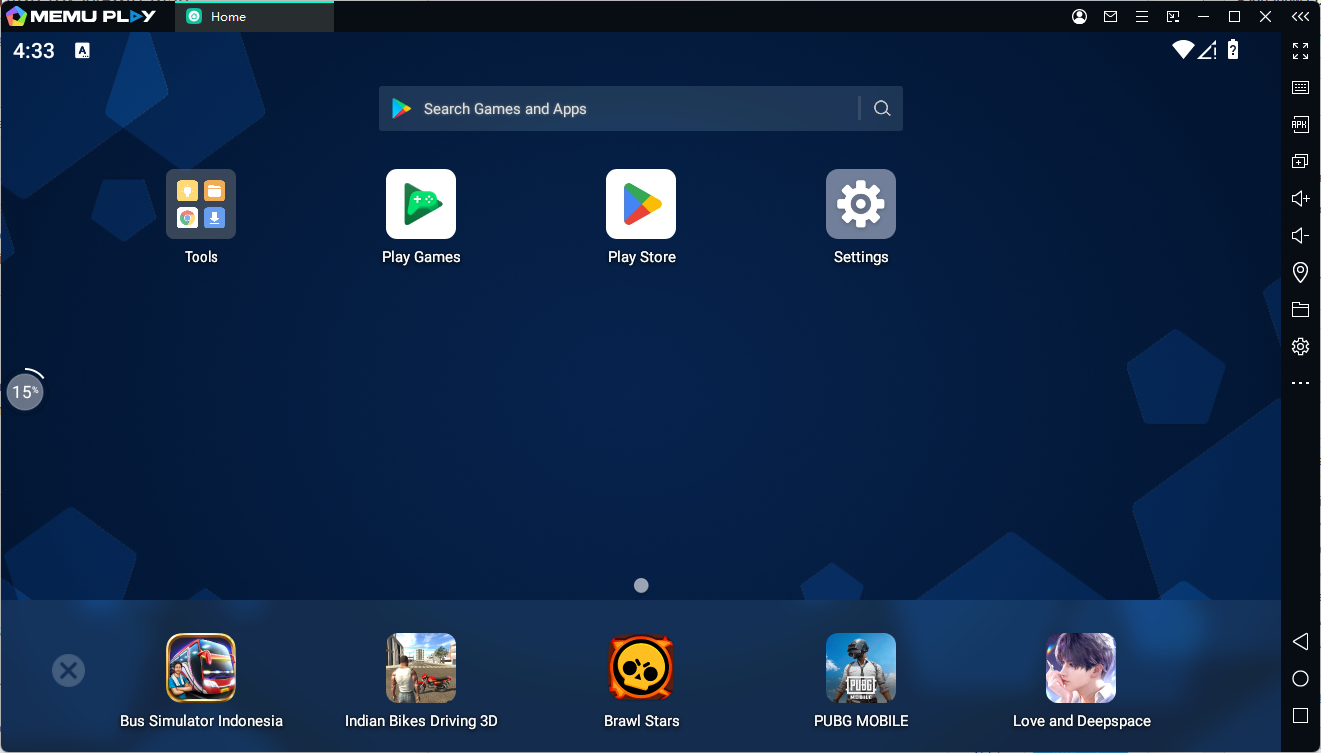
Step 1: Launch MEmu
After installation, open MEmu Play from your desktop or Start menu. The emulator will start and load the Android system.
Step 2: Sign in to Google Play
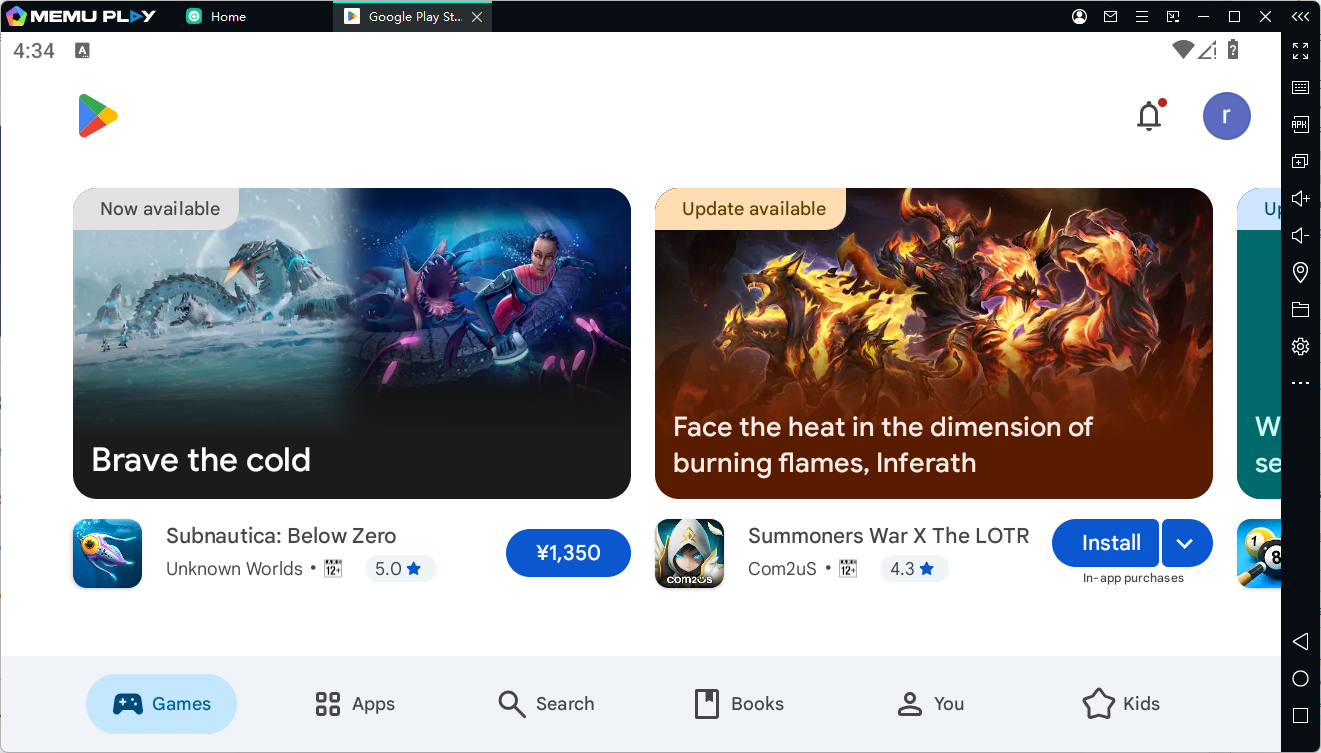
To download apps and games, sign in with your Google account:
-
Open the Google Play Store inside the emulator.
-
Enter your Google account email and password.
-
Accept the terms and complete the setup.
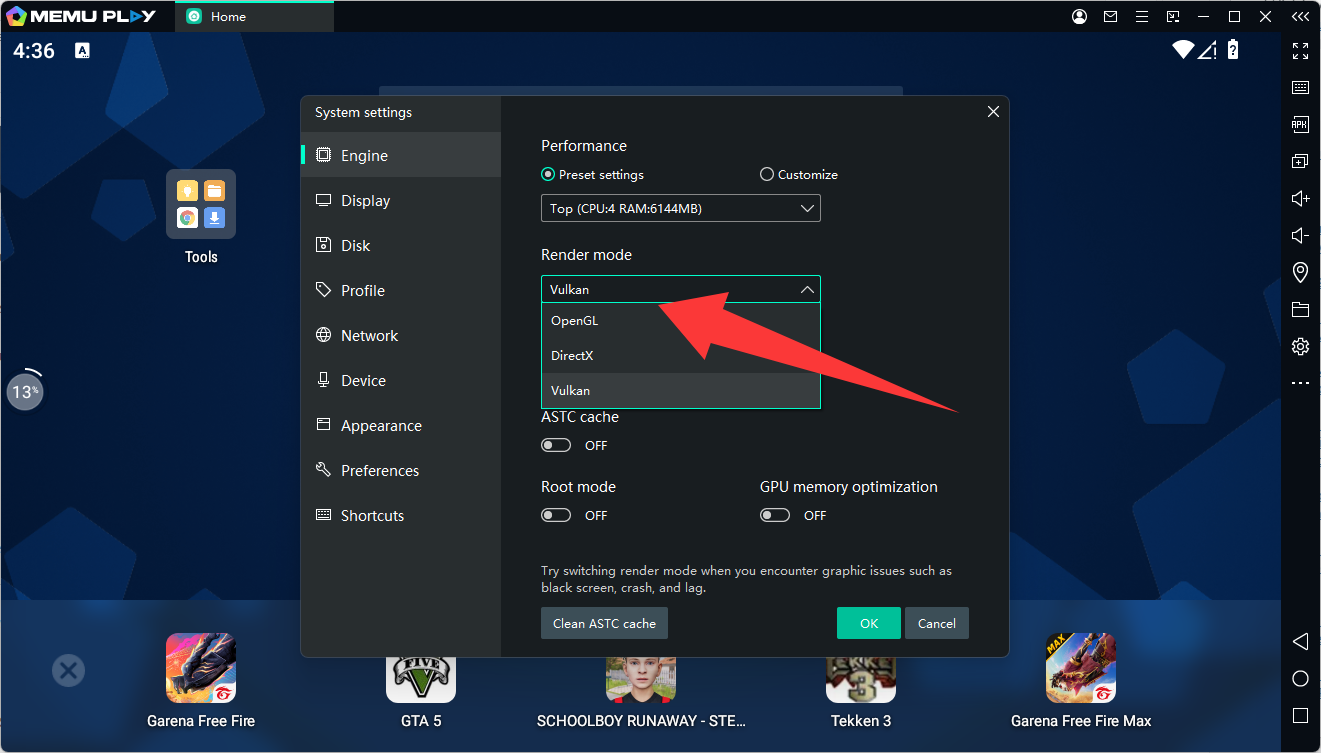
Step 3: Adjust Performance Settings
For better performance, configure the emulator settings:
-
Click the Menu (☰) in the top-right corner.
-
Open Settings.
-
Adjust CPU cores and RAM allocation based on your PC specifications.
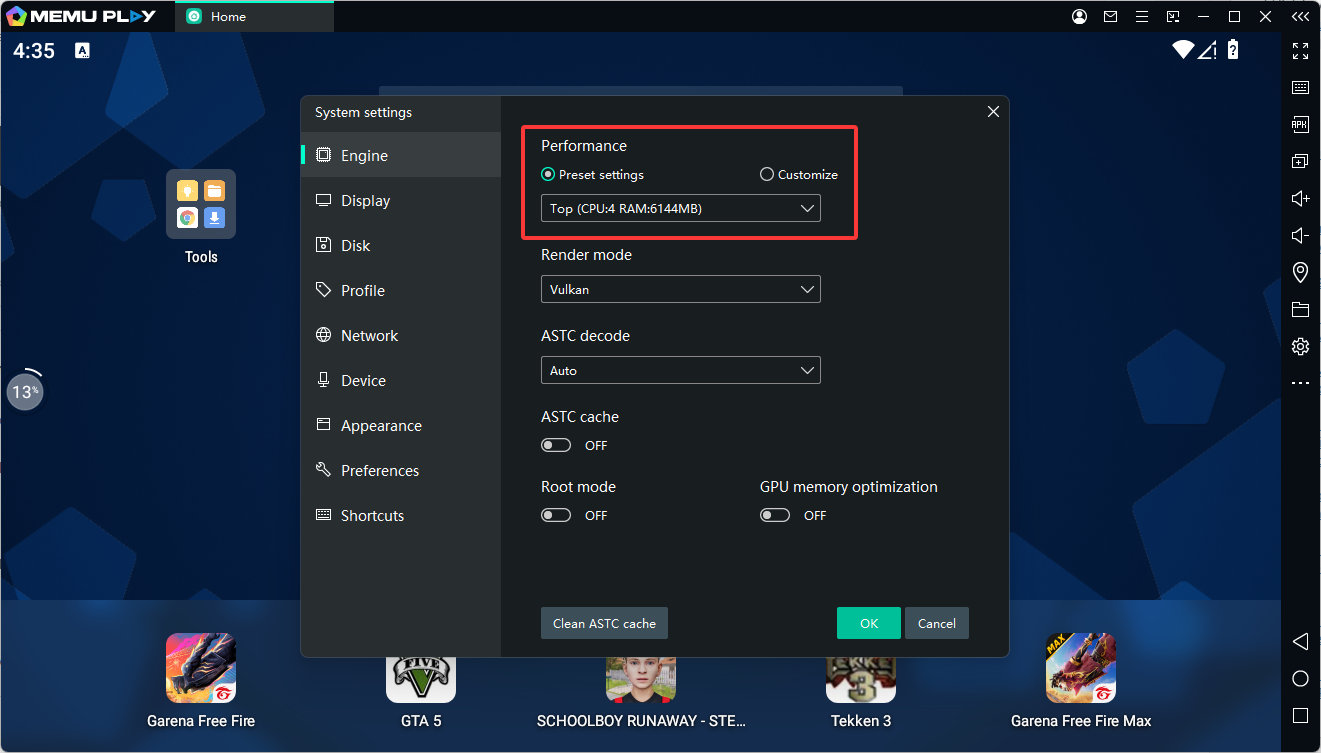
More resources can improve performance in demanding games.
Step 4: Enable Virtualization (Recommended)
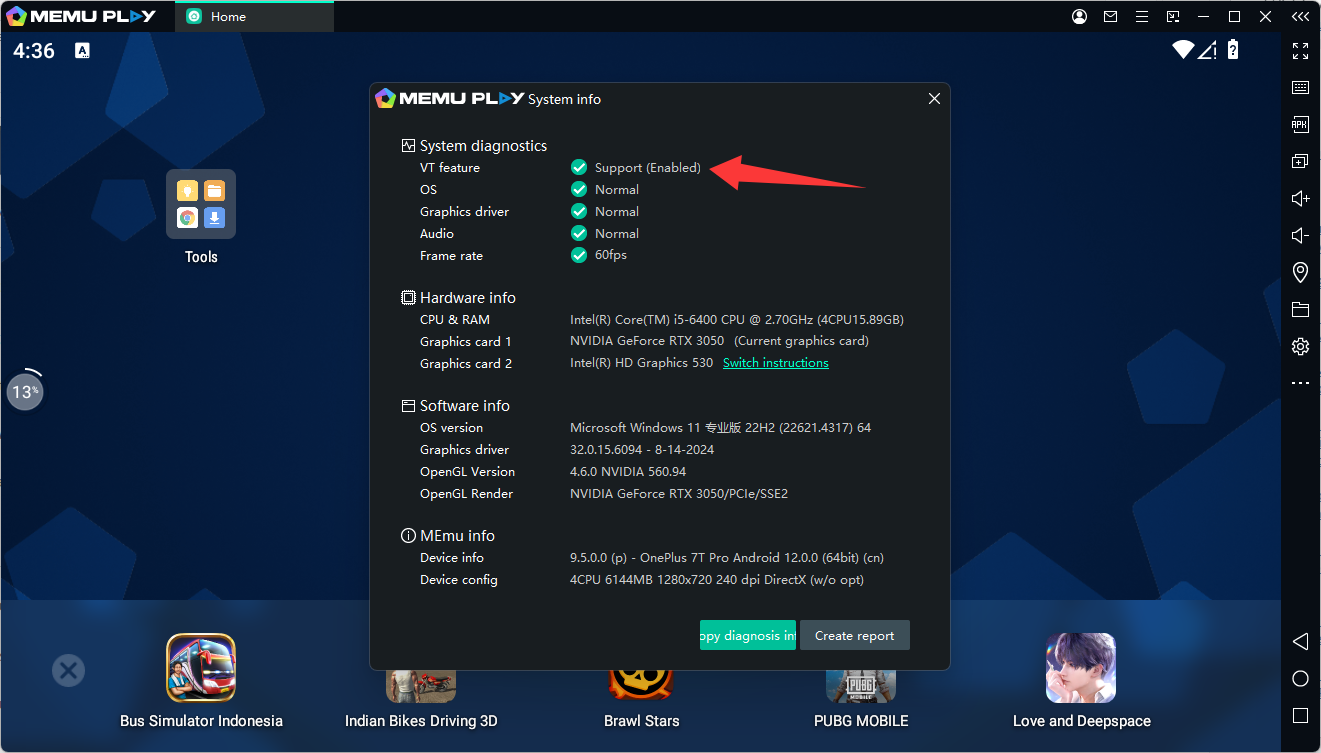
Hardware virtualization significantly improves emulator speed.
-
Restart your PC and enter BIOS/UEFI.
-
Enable Intel VT-x or AMD-V.
-
Save changes and restart your computer.
Step 5: Set Screen Resolution
You can adjust the display settings to match your preferences:
-
Open Settings in MEmu.
-
Select Display options.
-
Choose your preferred resolution and DPI.
Higher resolutions offer better visuals but may require more system resources.
Step 6: Install Your First App
Once setup is complete:
-
Open the Google Play Store.
-
Search for an app or game.
-
Click Install and wait for the download to finish.
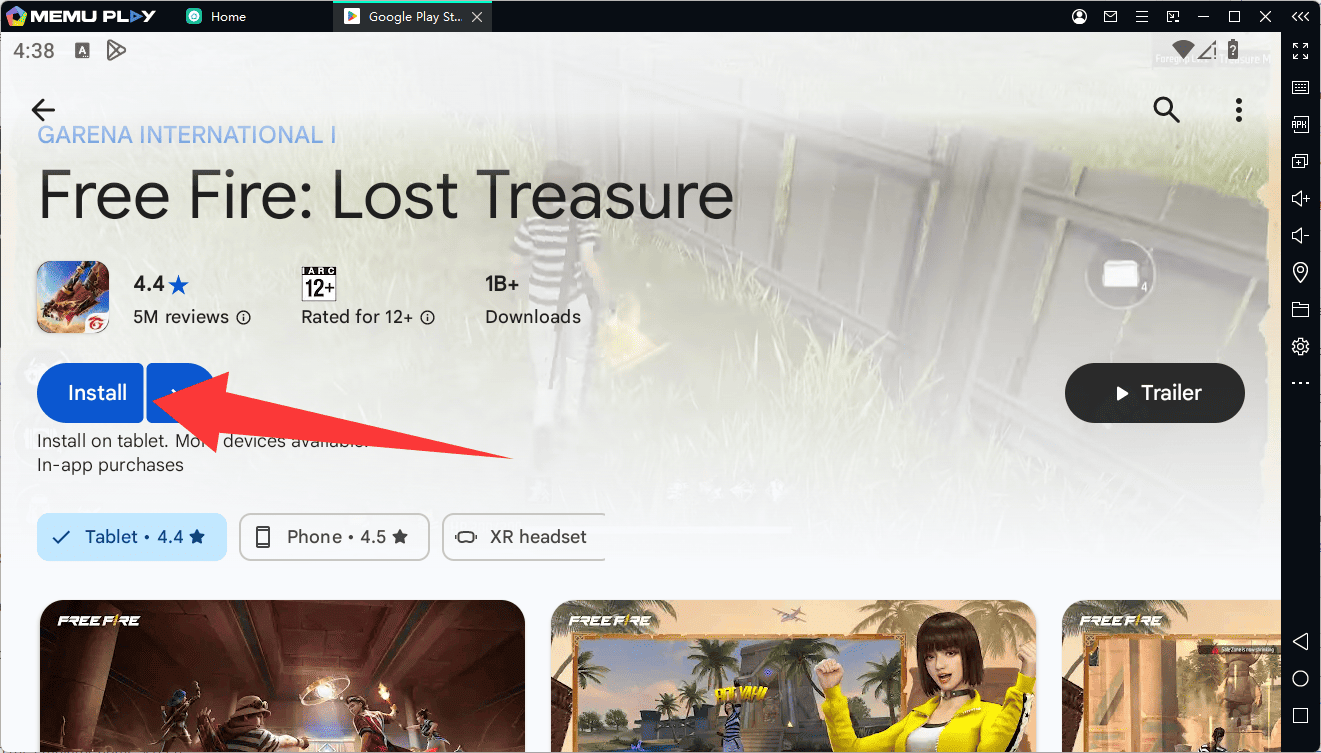
The app icon will appear on the emulator home screen.
Setup Tips
-
Update your graphics drivers for better compatibility.
-
Use an SSD if possible for faster loading times.
-
Configure keymapping for games to use keyboard and mouse controls.
After completing these steps, your emulator will be ready to run Android apps smoothly on your PC.