How to Increase FPS in MEmu Emulator
 |
|
How to Increase FPS in MEmu Emulator
Want smoother gameplay and higher FPS? Try these optimizations:
🚀 1. Enable VT (Virtualization)
-
Turn on Intel VT-x / AMD-V in BIOS
-
This is the biggest FPS boost
How to Enable Virtualization Technology (VT) on PC
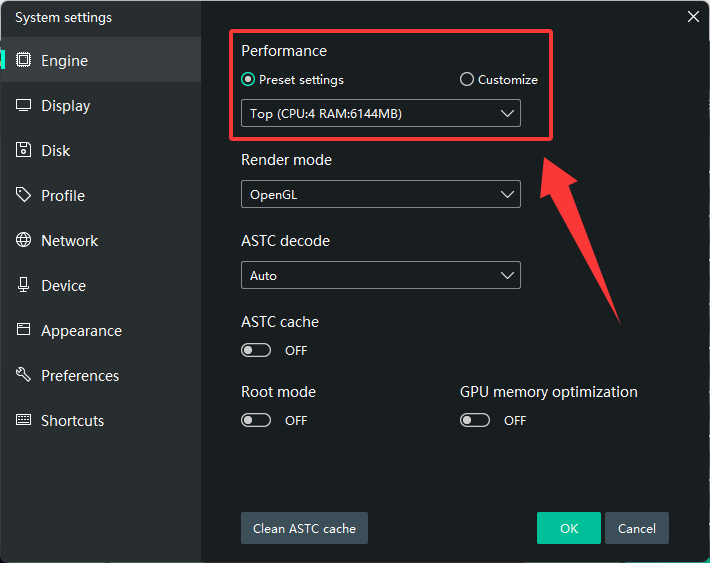
⚙️ 2. Optimize Engine Settings
-
Go to Settings → Engine
-
CPU: 4 cores (or half your CPU)
-
RAM: 4–8 GB
-
Performance: High
-
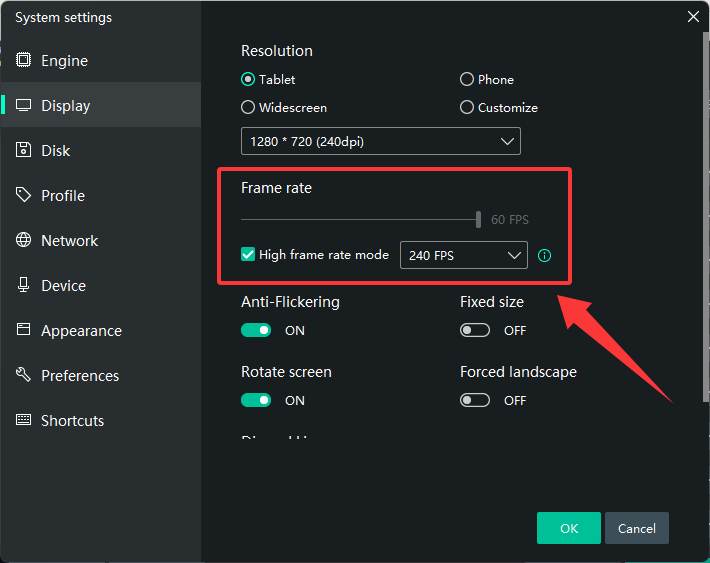
🎮 3. Increase FPS Limit
-
Settings → Display
-
Set FPS to 60 / 90 / 120 (depending on your PC)
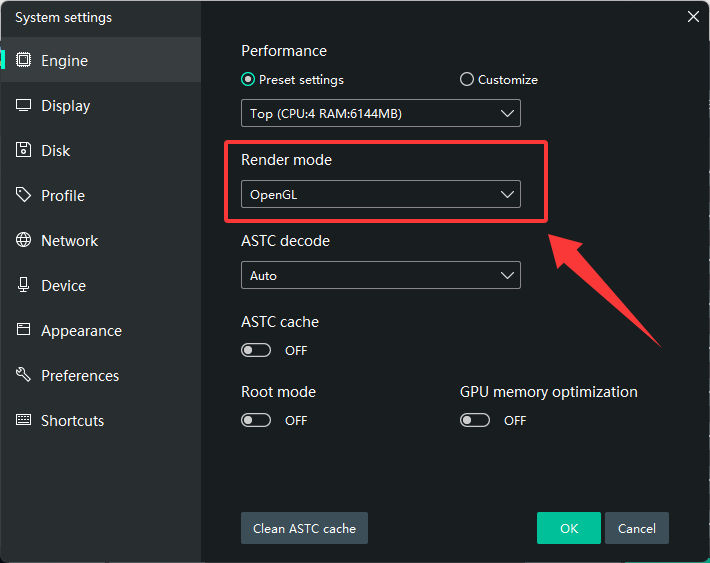
🖥️ 4. Switch Graphics Mode
-
Try:
-
DirectX (more stable)
-
OpenGL (better FPS on some setups)
-
🧠 5. Use Dedicated GPU
-
Set MEmu to High Performance GPU (NVIDIA/AMD control panel)
🔄 6. Update Graphics Drivers
-
Install latest drivers from official websites
🧹 7. Close Background Apps
-
Free up CPU & RAM for better performance
🎯 8. Lower In-Game Settings
-
Reduce resolution, shadows, and effects
-
Enable “High FPS mode” in-game (if available)
🔋 9. Set Windows to High Performance
-
Power Options → High Performance
🧼 10. Use SSD + Latest MEmu Version
-
Install MEmu on SSD
-
Keep emulator updated
⚠️ Extra Tips
-
Disable Hyper-V
-
Avoid running multiple instances
-
Keep your PC cool (overheating reduces FPS)