Play Pokémon Champions on PC: The Complete Beginner's Guide to Getting Started
 |
|
Pokémon Champions has arrived on Switch and mobile devices, but don't expect your typical Pokémon journey. Forget about catching wild Pokémon, exploring a linear story, or challenging traditional gyms. This game is a pure, competitive battling platform designed entirely around ranked matches. Because the learning curve is so steep, knowing exactly what to focus on before your first battle is everything.
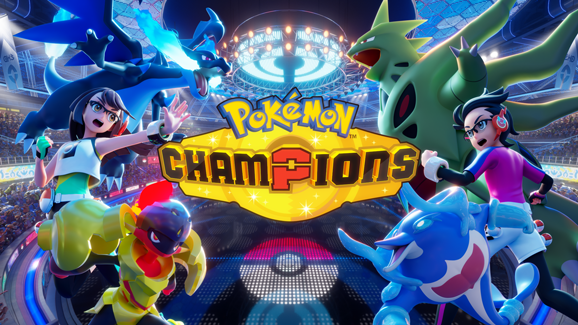

Pokémon Champions
Contents
How do you get Pokémon in Champions?
Forget catching. Pokémon Champions uses a scouting system accessed through the Roster Ranch, and you have three ways to recruit.
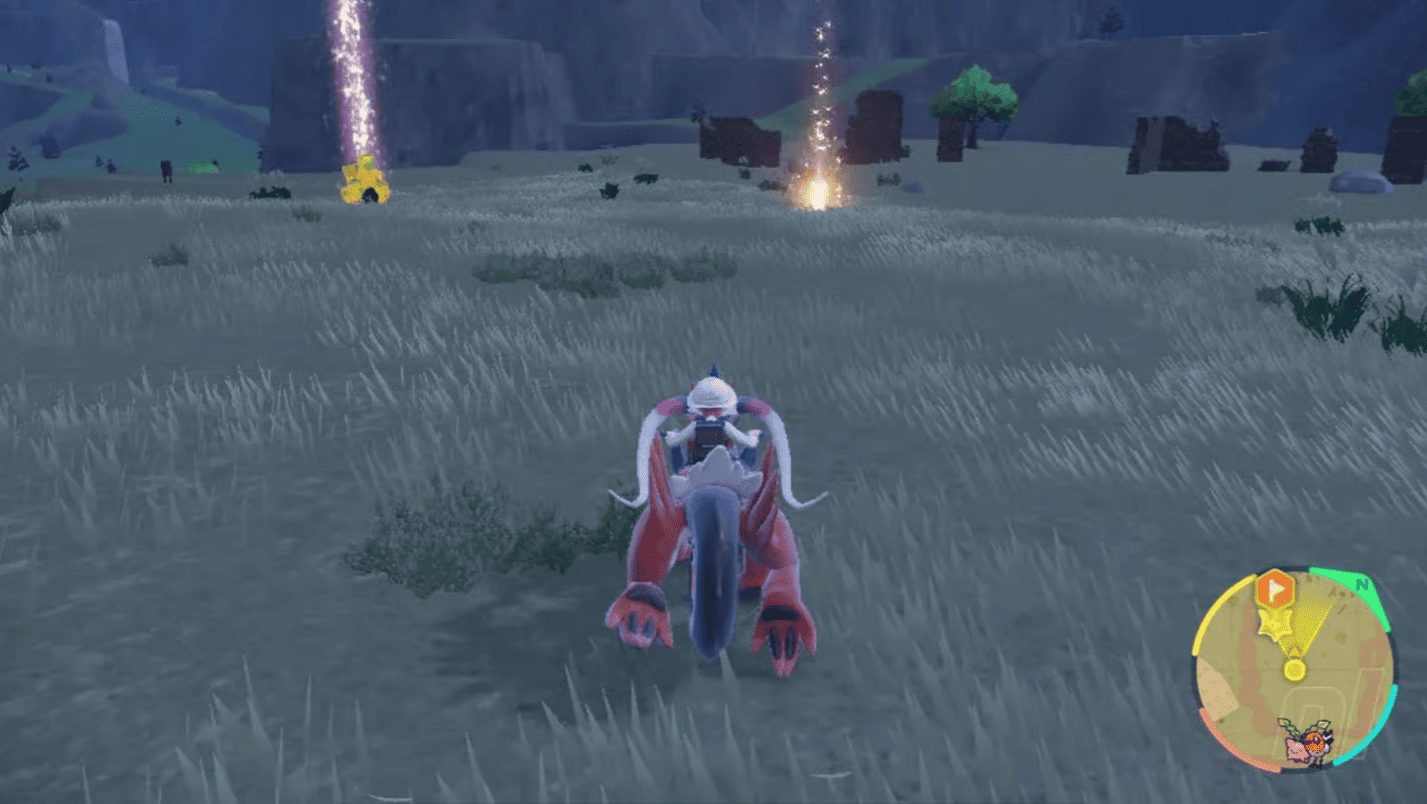
Here is a breakdown of how recruitment and team building work in Pokémon Champions:
-
Trial Scout (Free Testing): Refreshes every 22 hours at zero cost. It is the best way for beginners to test different roles before committing resources, with the option to permanently recruit the Pokémon later.
-
Regular Scout (Core Roster): Uses VP (Victory Points) to permanently add Pokémon to your team for indefinite training and ranked play.
-
Ticket Scouting (Resource Saving): Fast Coupons reduce wait times by one hour, while Regular Tickets let you recruit without spending VP. Consistent daily and weekly mission clears will keep these flowing.
-
Pokémon HOME Integration: You can import Pokémon directly from Pokémon LEGENDS Z-A and Pokémon GO. Note that this transfer is one-way only; Champions recruits cannot be sent back to HOME.
How does VP training work?
Customization works differently in Pokémon Champions compared to traditional games:
-
Full Customization: You can alter a Pokémon's moves, stats, and abilities using VP.
-
Scaling Costs: Minor tweaks and adjustments are inexpensive, whereas full competitive rebuilds require a much larger investment.
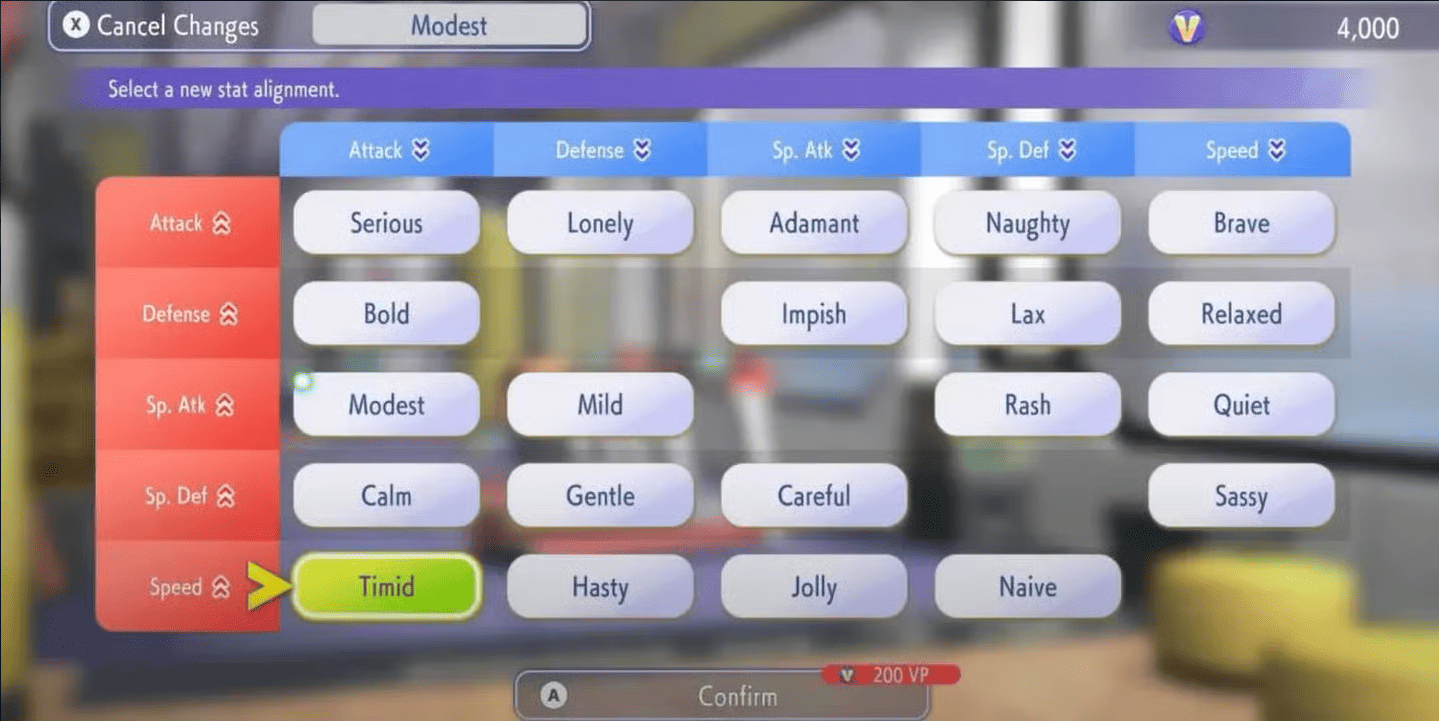
Customizing your competitive team relies on three core pillars:
-
Stat Training: Balance your Pokémon's six core stats (HP, Attack, Defense, Sp. Atk, Sp. Def, and Speed) around your strategy. Use Training Tickets to bypass standard training timers and get instant boosts.
-
Flexible Movesets: Adjust your moves freely to counter opponents—like bringing priority moves for faster targets or Special moves for physical walls. Note: Pokémon imported from HOME with incompatible moves must be retrained with valid Champions moves.
-
Ability Synergy: Select passive abilities that match your overall team composition, whether you need to trigger weather conditions, boost specific damage, or activate conditional passives.
VP training priority by team archetype
| Team Style | Priority Stats | Key Move Type | Ability Focus |
|---|---|---|---|
| Offensive | Attack, Speed | Physical or Special sweepers | Damage-boosting passives |
| Defensive | Defense, Special Defense | Status and recovery | Weather or conditional triggers |
| Balanced | Mixed distribution | Coverage moves | Utility passives |
What battle formats are available?
Once your team is built, you have four ways to compete, each serving a different purpose.
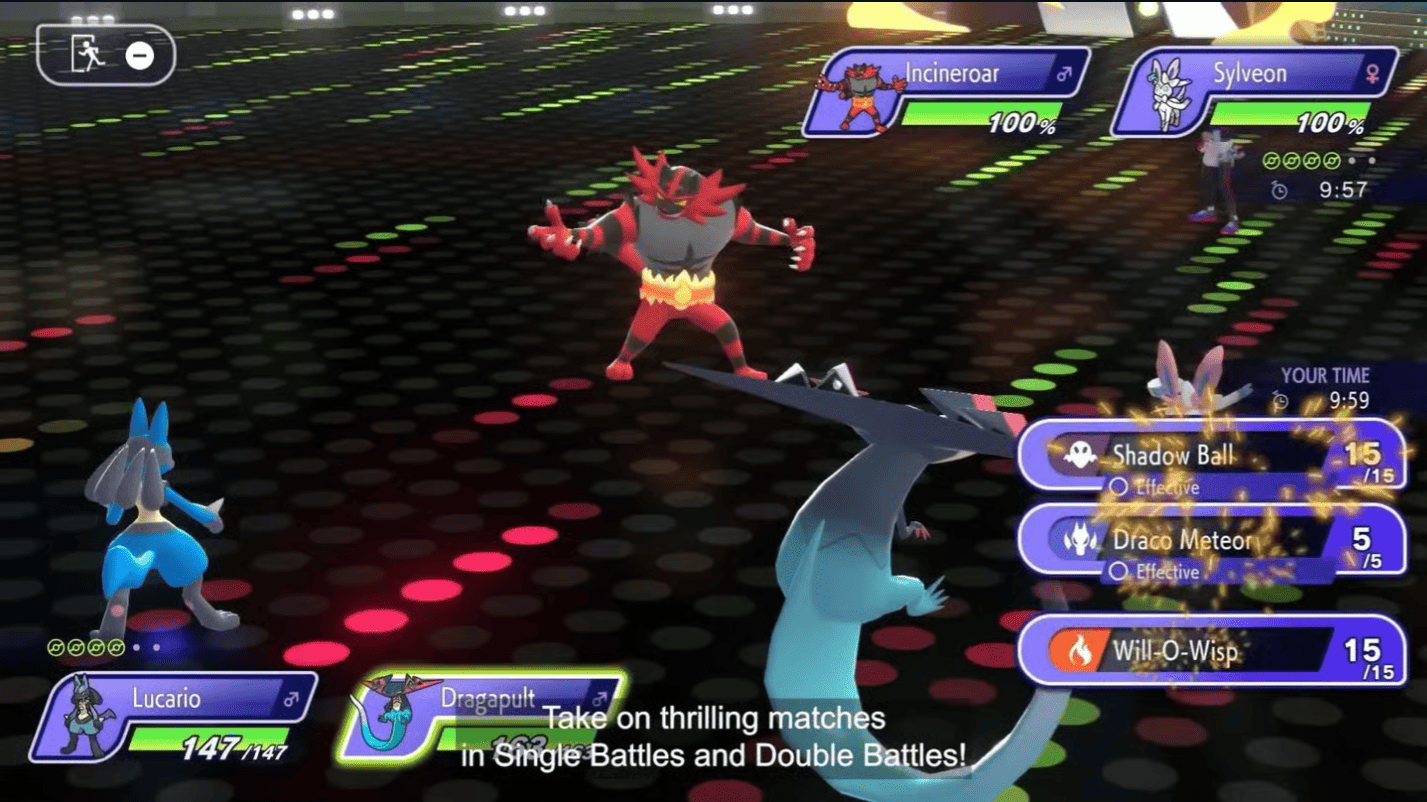
Battle Modes
-
Ranked Battles: The competitive heart of the game. This 1v1 ladder tracks your skill, where wins boost your rank and losses lower it. Formats and rules rotate seasonally to keep the meta fresh and prevent any single team from dominating permanently.
-
Casual Battles: A risk-free environment with no ranking consequences. It is the perfect training ground to test out new team compositions, experiment with different Pokémon, and practice strategies before taking them to the ladder.
-
Private Battles: Designed for direct challenges with friends. Rules are fully customizable—including level caps and team restrictions. This mode also supports multi-player brackets, making it excellent for community-run tournaments.
-
Online Competitions: Official, high-stakes in-game tournaments tailored for top-tier competitive play.
The Team Preview Phase
Before any moves are made, both players get a full look at each other's rosters. This preview phase is highly strategic: you must analyze type advantages, anticipate enemy abilities, and carefully choose your opening lead.
-
Single Battles: Choose 3 Pokémon to bring to the fight from your party of 6.
-
Double Battles: Choose 4 Pokémon to bring to the fight from your party of 6.
🚀 Pre-Match Checklist: Essential Tips for Ranked Success
-
Maximize Free Trials: Always utilize the Trial Scout every 22 hours to test-drive and learn the playstyles of Pokémon you haven't unlocked yet.
-
Optimize Before You Queue: Fully train your Pokémon's stats to align with your strategy before jumping into ranked matches, not as an afterthought.
-
Master the Preview Phase: Practice reading your opponent's lineup during the Team Preview in Casual Battles before putting your rank on the line.
-
Hoard Your Resources: Save your Regular Tickets and Fast Coupons from mission rewards for strategic recruitment rather than burning them instantly.
-
Verify HOME Imports: Always double-check the movesets of Pokémon transferred from Pokémon HOME to ensure they are compatible with the current rules.
-
Adapt to Seasonal Rules: Check the active seasonal regulations before theory-crafting your team, as legal Pokémon and items will rotate.
How to download and play Pokémon Champions on PC?
Here is how you can set up and play Pokémon Champions on PC using the MEmu Play emulator:
Step 1: Set Up MEmu Emulator
-
Head to the official MEmu Play website on your PC and download the latest installer.
-
Run the file to complete the installation.
-
Once installed, launch Multi-MEmu (the instance manager) from your desktop.
-
Create or start an instance.
Step 2: Sign in to Google Play
-
Open your MEmu Android instance.
-
Click on the Google Play Store icon on the home screen.
-
Sign in with your Google Account to access the store repository.
Step 3: Install Pokémon Champions
-
Use the search bar inside the Google Play Store and look up "Pokémon Champions".
-
Click Install.
Step 4: Configure Game Settings
-
Before launching, click the Gear icon (Settings) on the right-hand sidebar of MEmu.
-
Under Engine, ensure you have allocated at least 4 Cores of CPU and 4GB-8GB of RAM for steady frame rates.
-
Set the Render Mode to OpenGL/DirectX or Vulkan depending on your graphics card capabilities.
Step 5: Launch and Account Sync
-
Open Pokémon Champions from the emulator home screen.
-
Follow the prompt to log in. If you have active save data from a Nintendo Switch, make sure to link the exact same Nintendo Account so your competitive teams carry over seamlessly!
Explore More Articles
Download Pokémon Champions on PC with MEmu
Pokémon Champions Mystery Gift Codes: Full List (August 2026 Update)
Pokémon Champions Tier List: Best Pokémon to Use Right Now
Pokémon Champions: How to Get Mega Stones
How to Download Pokémon Champions on PC with MEmu Emulator?
Pokémon Champions Announced for Mobile: Release Dates, Ranked Battles, VP & Megas