Fix MEmu Low FPS in Games
 |
|
Fix MEmu Low FPS in Games – Full Guide
If your FPS is low or unstable in MEmu, use these fixes to boost performance:
🚀 1. Enable VT (Virtualization)
- Turn on Intel VT-x / AMD-V in BIOS
- This gives the biggest FPS improvement
How to Enable Virtualization Technology (VT) on PC
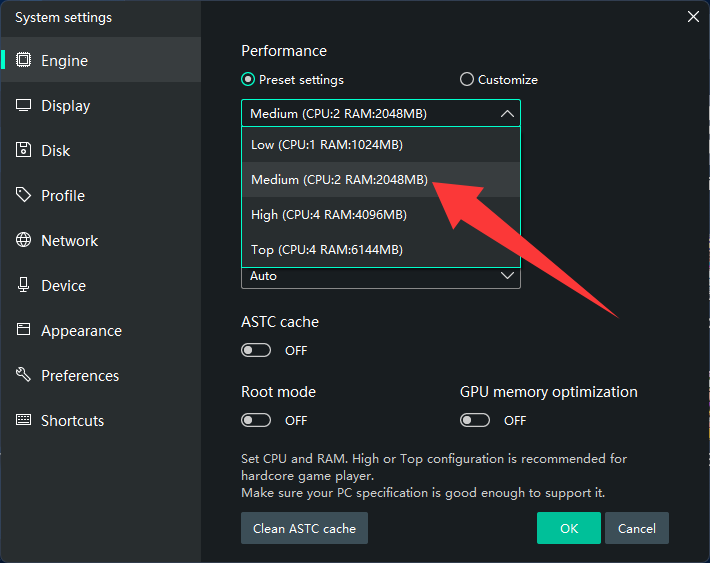
⚙️ 2. Optimize Engine Settings
- Go to Settings → Engine
- CPU: 4 cores (or half your CPU)
- RAM: 4–8 GB
- Performance: High
🎮 3. Increase FPS Limit
- Settings → Display
- Set FPS to 60 / 90 / 120
🖥️ 4. Switch Graphics Mode
- Try:
- DirectX (more stable)
- OpenGL (higher FPS on some PCs)
- OpenGL (more compatible)
🧠 5. Use Dedicated GPU
- Set MEmu to High Performance GPU (NVIDIA/AMD control panel)
🔄 6. Update Graphics Drivers
- Install latest drivers from official sites
🧹 7. Close Background Apps
- Free CPU & RAM (close Chrome, Discord, etc.)
🎯 8. Lower In-Game Settings
- Reduce resolution, shadows, effects
- Enable “High FPS mode” in-game (if available)
🔋 9. Set Windows to High Performance
- Power Options → High Performance
🛠️ 10. Disable Conflicts
- Turn off Hyper-V
- Close other emulators or virtual machines
⚠️ Extra Tips
- Install MEmu on SSD
- Avoid running multiple instances
- Keep your PC cool (overheating reduces FPS)