How to Download and Install MEmu Play on PC
 |
|
Follow these simple steps to download and install MEmu on your Windows PC and start running Android apps and games smoothly.
Step 1: Download the Installer
Go to the official MEmu website and download the latest version of the emulator installer for Windows.

Step 2: Run the Installer
Locate the downloaded file (usually MEmu-Setup.exe) in your Downloads folder and double-click it to start the installation process.

Step 3: Customize Installation (Optional)
Click Custom if you want to change the installation directory or adjust settings. Otherwise, click Install to continue with the default configuration.
Step 4: Complete Installation
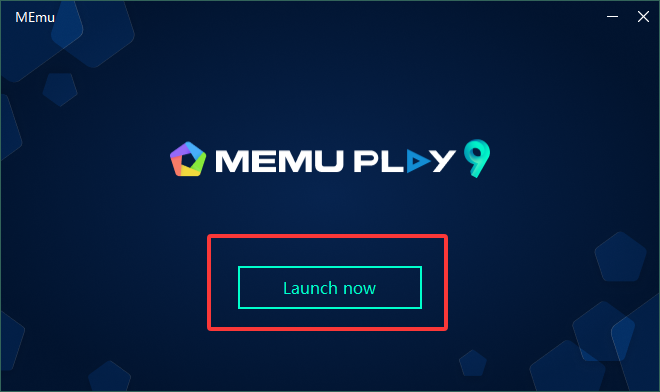
Wait for the installation to finish. Once completed, click Start to launch MEmu.

Step 5: Set Up the Emulator
When MEmu launches for the first time, sign in with your Google account to access the Google Play Store and download your favorite Android apps and games.
Step 6: Install Apps and Games
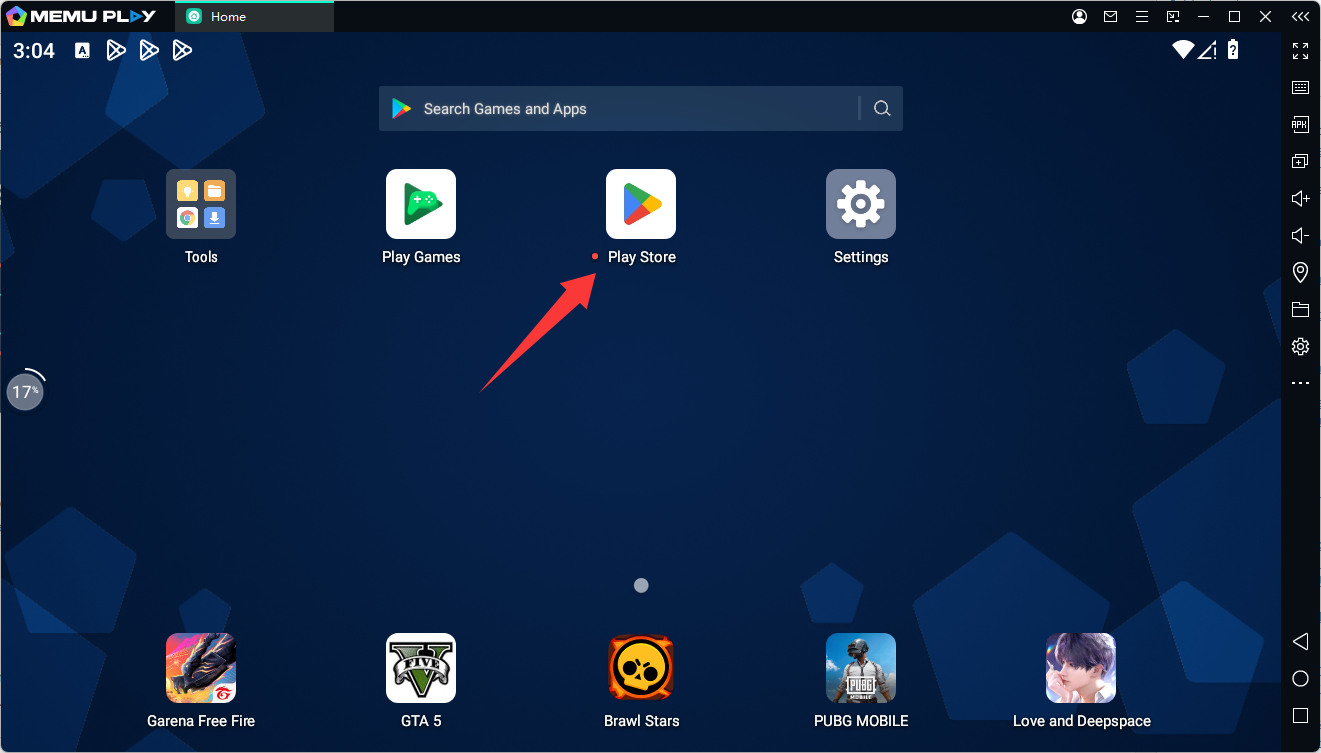
Open the Google Play Store inside MEmu, search for the app or game you want, and install it just like you would on a mobile device.

Tips for Better Performance
-
Enable hardware virtualization (Intel VT-x / AMD-V) in your BIOS.
-
Allocate more CPU cores and RAM in MEmu settings if your PC supports it.
-
Update to the latest version of MEmu for the best compatibility.
Once installed, you can enjoy playing Android games or running apps on a larger screen with keyboard and mouse controls.