How to Fix Lag on MEmu Emulator
 |
|
How to Fix Lag on MEmu Emulator
Experiencing lag on MEmu? Try these proven fixes to boost performance:
🚀 1. Enable VT (Virtualization)
-
Enter BIOS → Enable Intel VT-x / AMD-V
-
This gives a huge performance boost
How to Enable Virtualization Technology (VT) on PC
⚙️ 2. Adjust Performance Settings
-
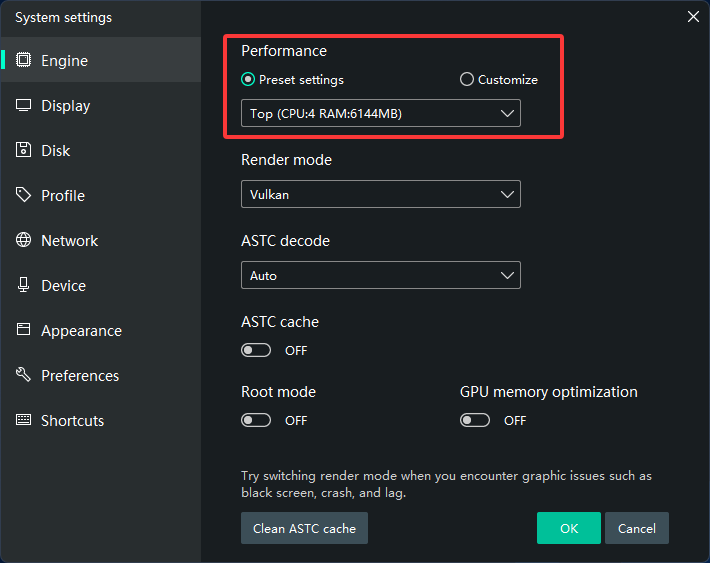
Open Settings → Engine
-
CPU: 2–4 cores
-
RAM: 2–4 GB (or higher if available)
-
Performance: High
-
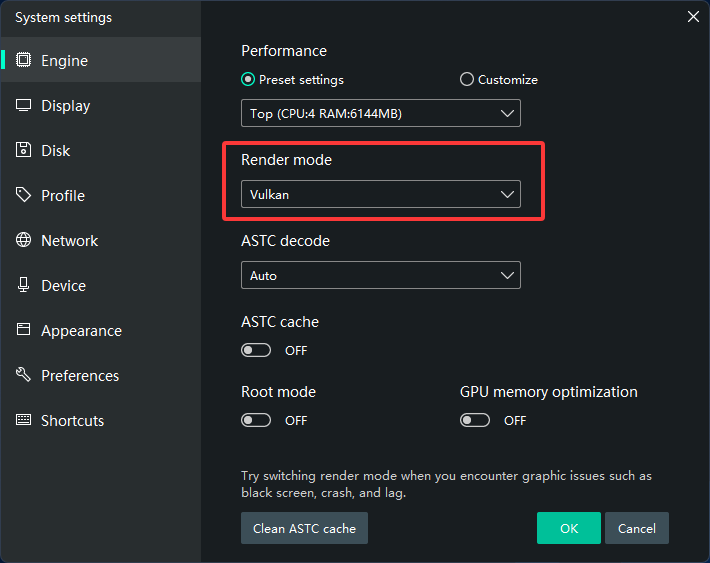
🎮 3. Switch Graphics Mode
-
Try:
-
DirectX (better compatibility)
-
OpenGL (better performance on some GPUs)
-
🖥️ 4. Update Graphics Driver
-
Install latest drivers from:
-
NVIDIA / AMD / Intel official sites
-
Fix “Graphics Driver Not Compatible” Error
🧹 5. Close Background Apps
-
Free up CPU and RAM
-
Close browsers, other emulators, and heavy programs
🔋 6. Enable High Performance Mode (Windows)
-
Control Panel → Power Options → High Performance
🛠️ 7. Lower In-Game Settings
-
Reduce:
-
Resolution
-
FPS
-
Graphics quality
-
🔄 8. Use Dedicated GPU (Laptop)
-
Force MEmu to use high-performance GPU
🧼 9. Clean Reinstall (If Needed)
-
Uninstall MEmu → reinstall latest version
⚠️ Bonus Tips
-
Use SSD instead of HDD
-
Keep Windows updated
-
Avoid overheating (clean fans)