How to Transfer Files Between PC and MEmu Play
 |
|
MEmu allows you to easily transfer files such as images, videos, APKs, and documents between your PC and the Android system inside the emulator.
Method 1: Drag and Drop Files
-
Open MEmu Play.
-
Drag a file from your PC and drop it into the emulator window.
-
The file will automatically be copied to the shared folder inside Android.
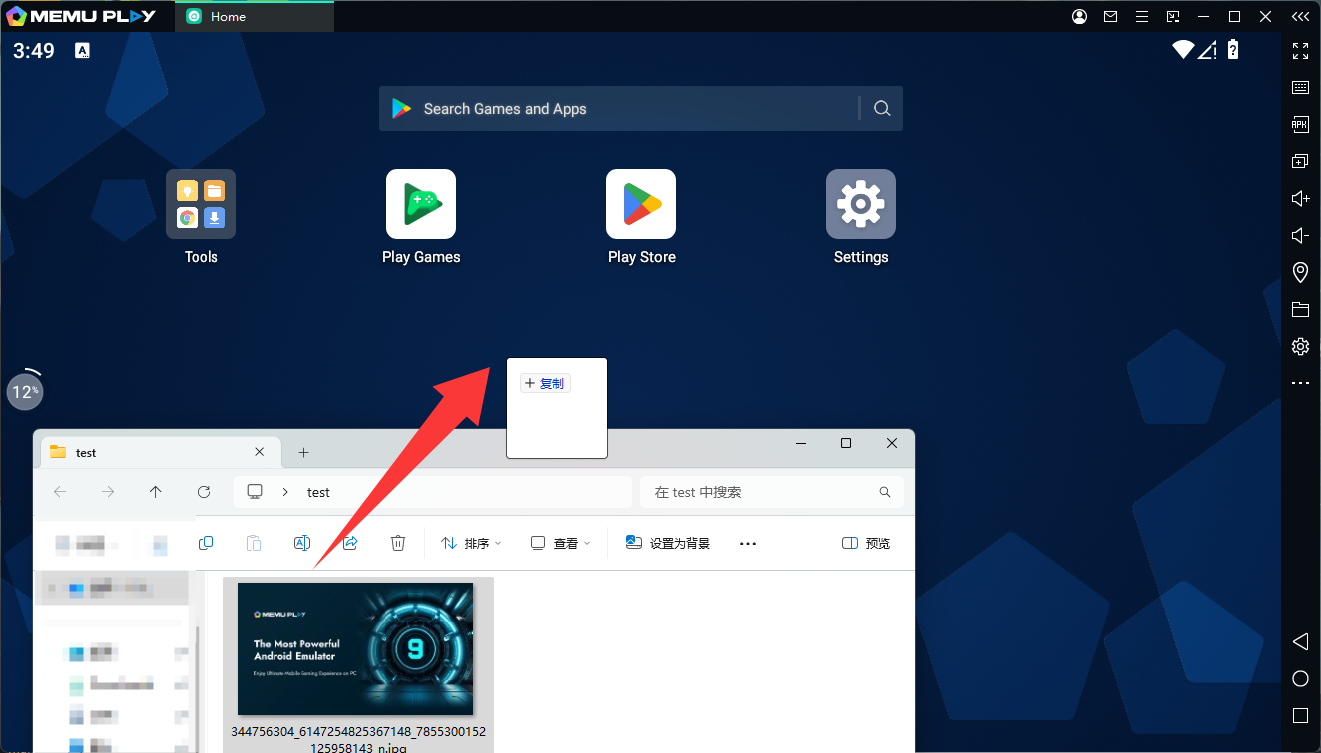
This method works well for APK files, images, and small documents.
Method 2: Use the Shared Folder
-
Open MEmu Play.
-
Click the Shared Folder icon on the right-side toolbar.
-
The shared directory will open on your PC.
-
Copy files into this folder to access them from Android.

Inside the emulator, you can find these files in the File Manager under the shared directory.
Tips
-
The shared folder allows two-way file transfer between PC and Android.
-
Large files may take longer depending on your disk speed.
-
You can use Android File Manager apps inside MEmu to organize transferred files.
Using these methods, you can quickly move files between your PC and the emulator for gaming, app testing, or media sharing.