Microsoft Authenticator
Ενημερώθηκε
Τρέχουσα έκδοση
6.2608.5658
Προσφέρεται από

Σταματήστε να ανησυχείτε για υπερβολικές χρεώσεις όταν χρησιμοποιείτε το Microsoft Authenticator στο κινητό σας, απελευθερώστε τον εαυτό σας από τη μικροσκοπική οθόνη και απολαύστε τη χρήση της εφαρμογής σε μια πολύ μεγαλύτερη οθόνη. Από τώρα και στο εξής, αποκτήστε εμπειρία πλήρους οθόνης της εφαρμογής σας με πληκτρολόγιο και ποντίκι. Το MEmu σας προσφέρει όλες τις εκπληκτικές δυνατότητες που περιμένατε: γρήγορη εγκατάσταση και εύκολη εγκατάσταση, διαισθητικά χειριστήρια, όχι περισσότερους περιορισμούς μπαταρίας, δεδομένα κινητής τηλεφωνίας και ενοχλητικές κλήσεις. Το ολοκαίνουργιο MEmu 9 είναι η καλύτερη επιλογή για χρήση του Microsoft Authenticator στον υπολογιστή σας. Κωδικοποιημένο με την απορρόφηση μας, ο διαχειριστής πολλαπλών παρουσιών καθιστά δυνατό το άνοιγμα 2 ή περισσότερων λογαριασμών ταυτόχρονα. Και το πιο σημαντικό, ο αποκλειστικός κινητήρας εξομοίωσης μπορεί να απελευθερώσει όλες τις δυνατότητες του υπολογιστή σας, να κάνει τα πάντα ομαλά και ευχάριστα.
Show more
Απολαύστε την υπέροχη εμπειρία αναπαραγωγής του Microsoft Authenticator σε υπολογιστή με το MEMU Play. Πρόκειται για έναν ισχυρό δωρεάν εξομοιωτή Android που σας επιτρέπει να παίζετε χιλιάδες παιχνίδια Android. Use Microsoft Authenticator for easy, secure sign-ins for all your online accounts using multi-factor authentication or passwordless.
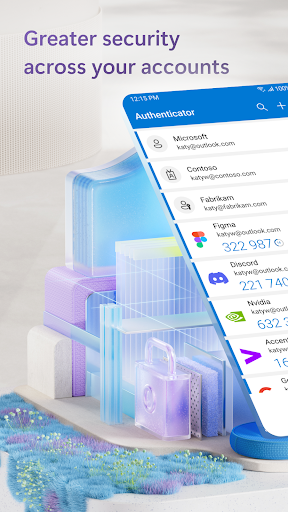
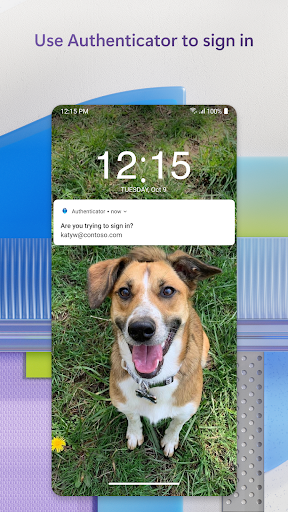
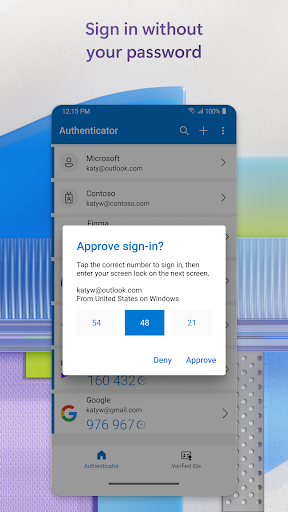
Use Microsoft Authenticator for easy, secure sign-ins for all your online accounts using multi-factor authentication or passwordless. You also have additional account management options for your Microsoft personal, work or school accounts.
Getting started with multi-factor authentication
Multi factor authentication (MFA) or two factor authentication (2FA) provides a second layer of security. When logging in with multi-factor authentication, you’ll enter your password, and then you’ll be asked for an additional way to prove it’s really you. Either approve the notification sent to the Microsoft Authenticator, or enter the one-time password (OTP) generated by the app. The one-time passwords (OTP codes) have a 30 second timer counting down. This timer is so you never have to use the same time-based one-time password (TOTP) twice and you don’t have to remember the number. The one-time password (OTP) doesn’t require you to be connected to a network, and it won’t drain your battery. You can add multiple accounts to your app, including non-Microsoft accounts like Facebook, Amazon, Dropbox, Google, LinkedIn, GitHub, and more.
Getting started with passwordless
Use your phone, not your password, to log into your Microsoft account. Just enter your username, then approve the notification sent to your phone. Your fingerprint, face ID, or PIN will provide a second layer of security in this two-step verification process. After you’ve signed in with two factor authentication (2FA), you’ll have access to all your Microsoft products and services, such as Outlook, OneDrive, Office, and more.
Microsoft personal, work or school accounts
Sometimes your work or school might ask you to install the Microsoft Authenticator when accessing certain files, emails, or apps. You will need to register your device to your organization through the app and add your work or school account. Microsoft Authenticator also supports cert-based authentication by issuing a certificate on your device. This will let your organization know that the sign-in request is coming from a trusted device and help you seamlessly and securely access additional Microsoft apps and services without needing to log into each. Because Microsoft Authenticator supports single sign-on, once you have proven your identity once, you will not need to log in again to other Microsoft apps on your device.
Optional Access Permissions
Microsoft Authenticator includes the following optional access permissions. All these require user consent. If you choose to not grant these optional access permissions, you can still use Microsoft Authenticator for other services that do not require such permission. For more information see https://aka.ms/authappfaq
Location: Sometimes your organization wants to know your location before allowing you to access certain resources. The app will request this permission only if your organization has a policy requiring location.
Camera: Used to scan QR codes when you add a work, school, or non-Microsoft account.
Read the contents of your storage: This permission is only used when you report a technical problem through the app settings. Some information from your storage is collected to diagnose the issue.
Show more

1. Κατεβάστε το πρόγραμμα εγκατάστασης MEmu και ολοκληρώστε την εγκατάσταση

2. Ξεκινήστε το MEmu και στη συνέχεια ανοίξτε το Google Play στην επιφάνεια εργασίας

3. Αναζητήστε τον Microsoft Authenticator στο Google Play
Install
4. Λήψη και εγκατάσταση του Microsoft Authenticator
5. Μόλις ολοκληρωθεί η εγκατάσταση, κάντε κλικ στο εικονίδιο για να ξεκινήσετε

6. Απολαύστε τη χρήση του Microsoft Authenticator σε υπολογιστή με το MEmu
Το MEmu Play είναι ο καλύτερος δωρεάν εξομοιωτής Android, που χρησιμοποιείται αυτήν τη στιγμή από πάνω από 50 εκατομμύρια χρήστες που απολαμβάνουν την εμπειρία εφαρμογών που προσφέρει. Μέσω της τεχνολογίας εικονικοποίησης MEmu 9, οι χρήστες μπορούν να δοκιμάσουν εφαρμογές Android στους υπολογιστές τους, ακόμα και σε εκείνους που απαιτούν υψηλή ισχύ επεξεργασίας γραφικών, οι οποίες λειτουργούν ομαλά σαν να λειτουργούν στα κινητά τηλέφωνα τελευταίας γενιάς, χωρίς να θυσιάζεται η ποιότητα της εικόνας και η εμπειρία χρήστη.
Μεγαλύτερη οθόνη με καλύτερα γραφικά. Μεγάλη διάρκεια ζωής, χωρίς περιορισμό μπαταρίας ή δεδομένων κινητής τηλεφωνίας.
Πλήρης υποστήριξη αντιστοίχισης πλήκτρων για ακριβή έλεγχο του πληκτρολογίου και του ποντικιού ή του gamepad.
Πολλαπλοί λογαριασμοί παιχνιδιών ή εργασίες σε έναν υπολογιστή ταυτόχρονα με τον διαχειριστή πολλαπλών περιπτώσεων.
Use Microsoft Authenticator on PC by following steps: