MEmu Play Interface Overview for Beginners
 |
|
If you are new to MEmu Play, understanding the emulator interface will help you quickly navigate and use its features to run Android apps and games on your PC.
1. Home Screen (Android Desktop)
The home screen works just like an Android phone or tablet. Here you can:
-
Launch installed apps and games
-
Open system tools such as Settings or File Manager
-
Access the Google Play Store to download new apps
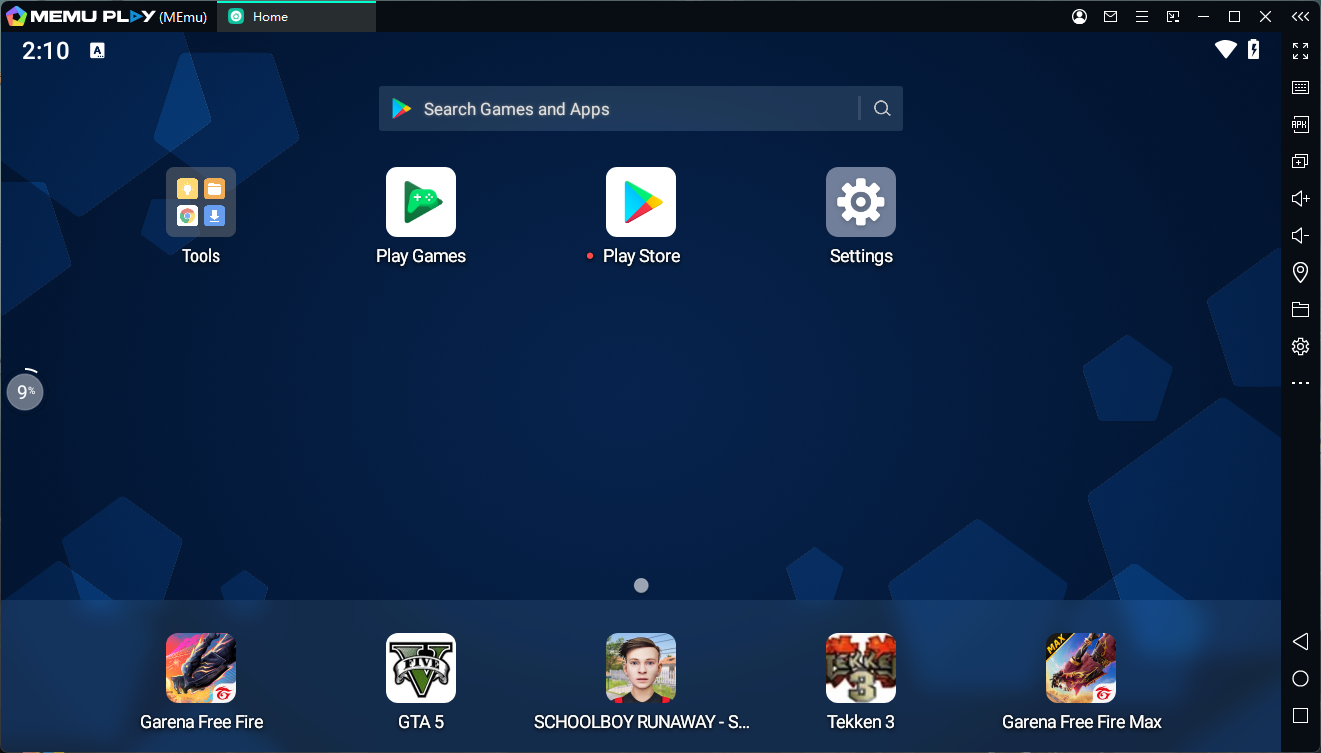
You can also move icons, create folders, and customize the layout.
2. Top Toolbar
The top bar contains important controls for the emulator:
-
Menu – Access settings and additional options
-
Minimize / Maximize – Adjust the emulator window size
-
Close – Exit the emulator
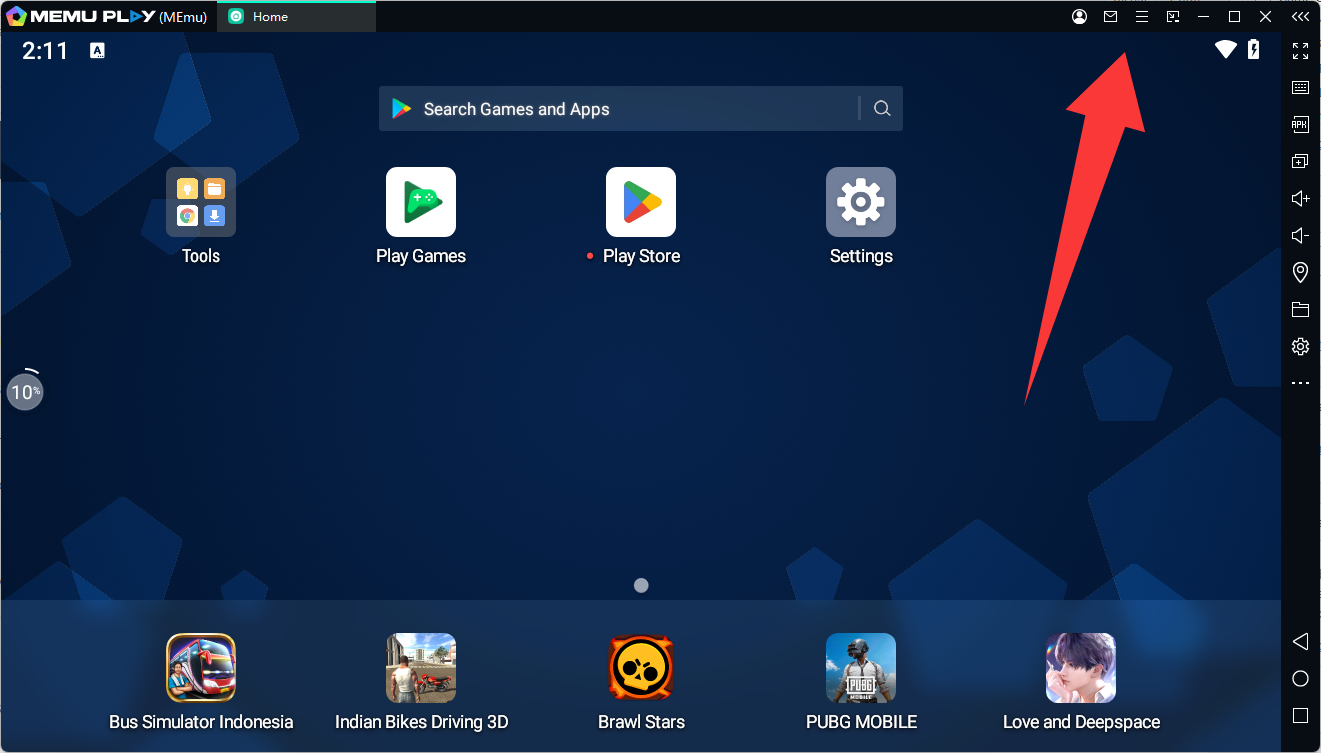
This section works similarly to standard Windows applications.
3. Right-Side Toolbar
The right toolbar provides quick access to frequently used features:
Common tools include:
-
APK Install – Install APK files directly from your PC
-
Keymapping – Customize keyboard and mouse controls for games
-
Multi-Instance Manager – Run multiple emulator instances
-
Shared Folder – Transfer files between PC and emulator
-
Screen Capture / Recording – Take screenshots or record gameplay
-
Location (GPS) – Simulate GPS location for apps that require it
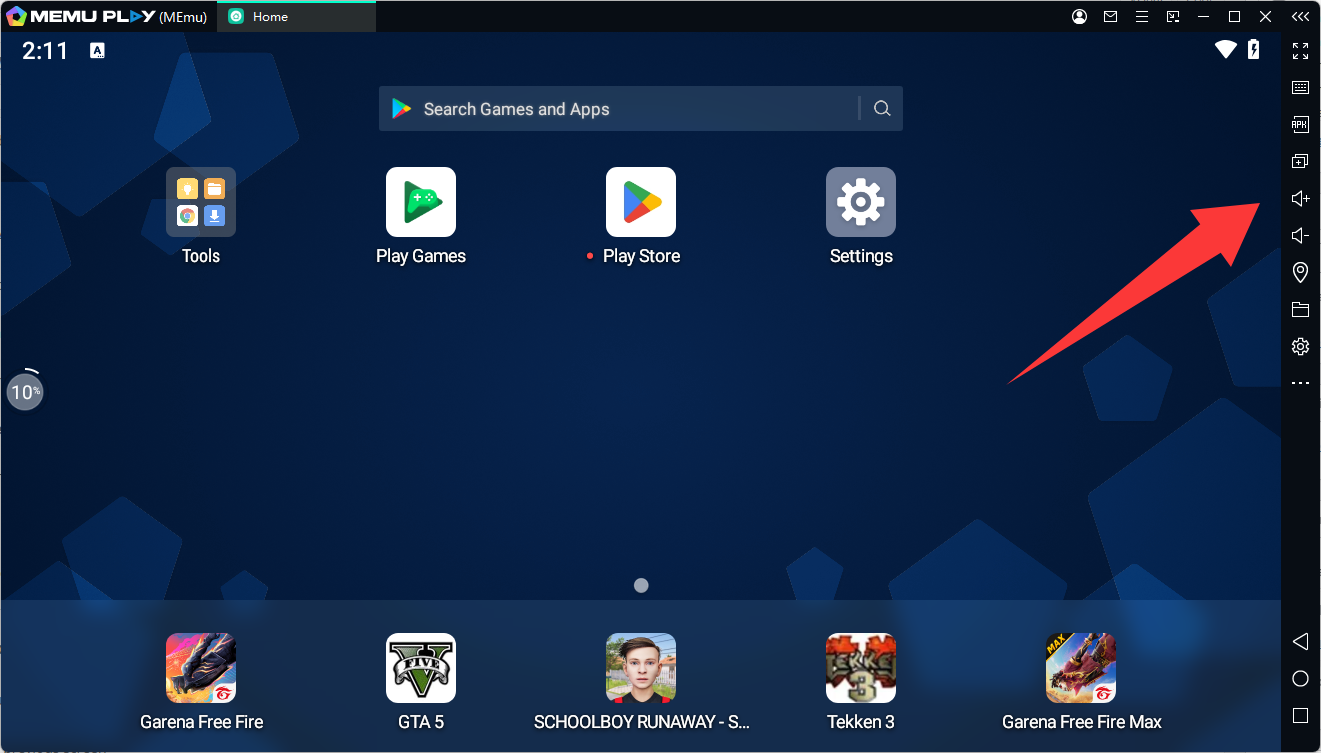
These shortcuts make it easier to manage apps and gameplay.
4. Android Navigation Buttons
At the bottom of the emulator window you will find standard Android navigation controls:
-
Back – Return to the previous screen
-
Home – Go back to the Android home screen
-
Recent Apps – View and switch between running apps
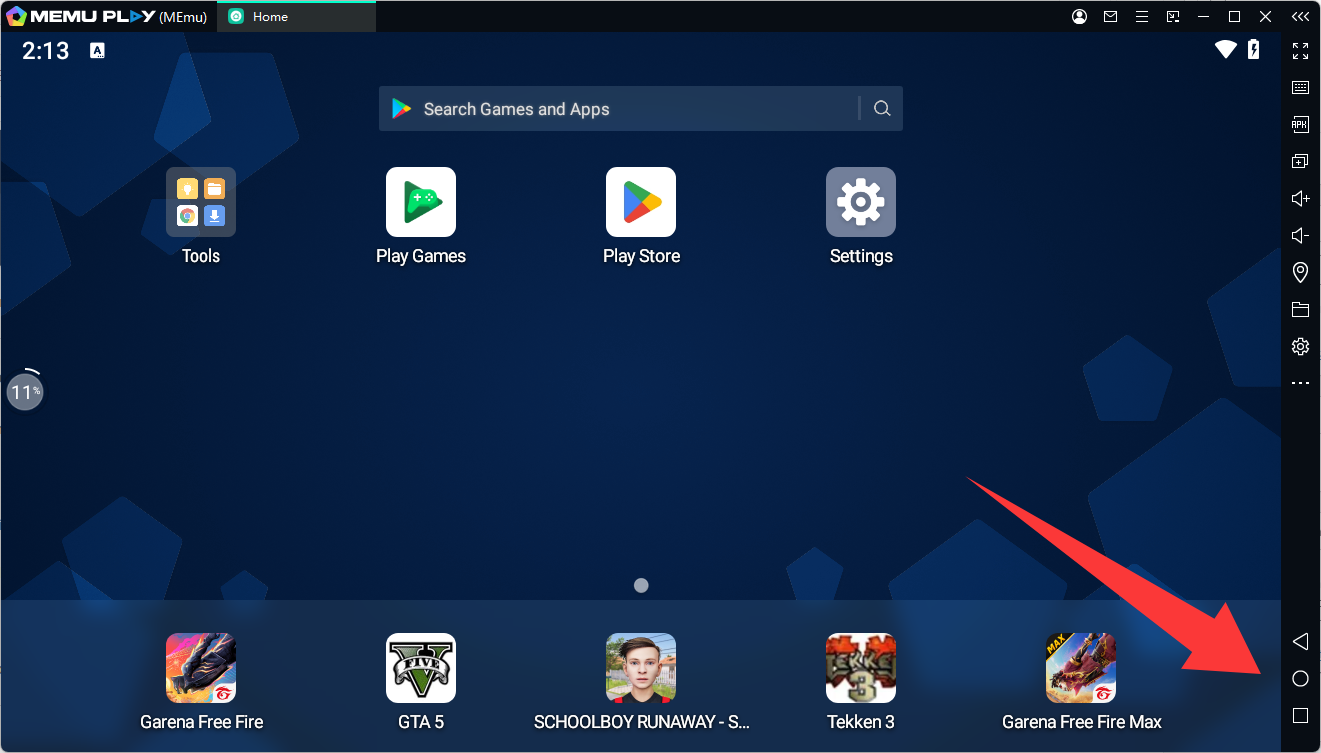
These function the same as on a physical Android device.
5. Settings Menu
The Settings menu lets you customize emulator performance and behavior.
You can adjust:
-
CPU and RAM allocation
-
Screen resolution and DPI
-
Graphics rendering mode
-
Language and system settings
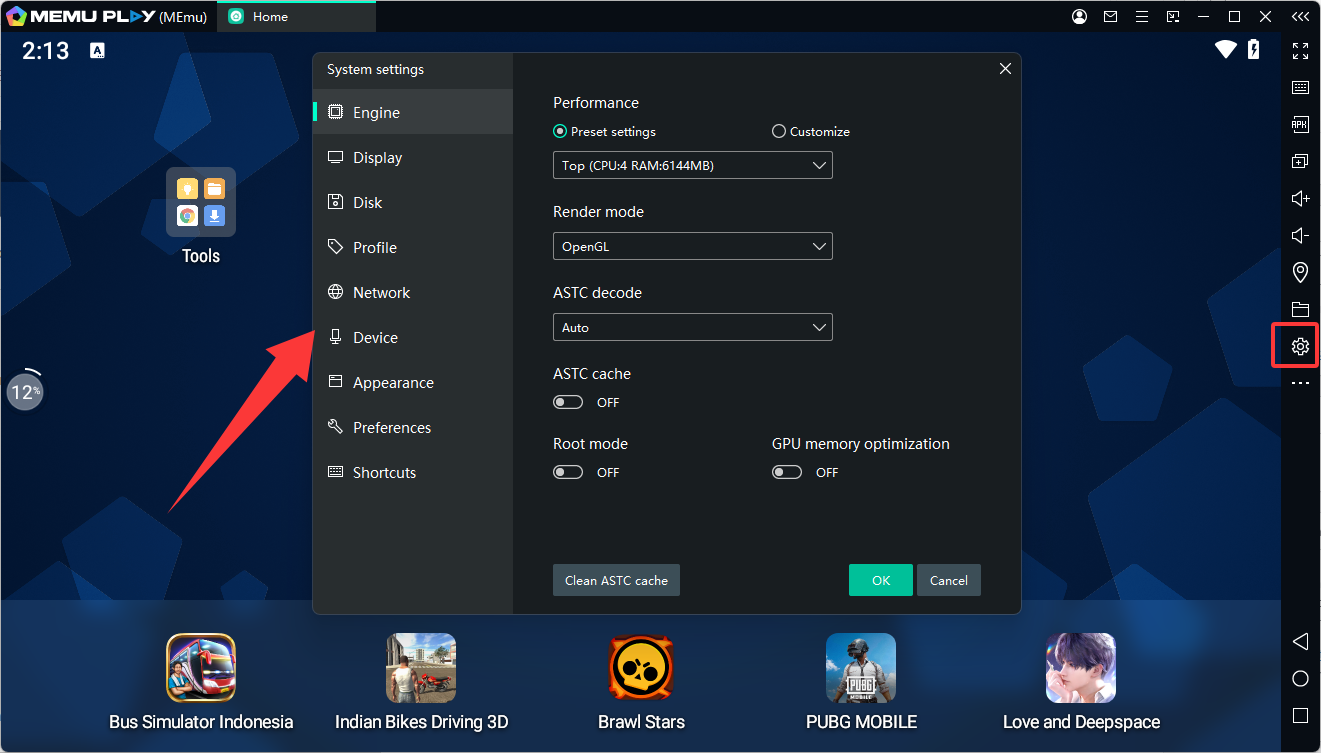
Optimizing these settings can significantly improve performance.
Beginner Tip
If you plan to play games, make sure to enable hardware virtualization (VT) and configure keymapping to get smoother gameplay and better keyboard control.
Once you understand these basic interface sections, using MEmu becomes as easy as operating an Android phone on your computer.